


Single Sign-On (SSO) has become an essential part of modern cloud security, allowing users to...
Single Sign-On (SSO) for Amazon Connect using Okta can be deceptively tricky. While the individual components (Okta, IAM, SAML, and Amazon Connect) are all well-documented, the integration points between them are where most issues occur.
This guide walks through a working, end-to-end SAML 2.0 federation setup between Okta and Amazon Connect, including the IAM policies, roles, and Okta configuration required to avoid common “invalid SAML response” and sts:AssumeRoleWithSAML errors
Prerequisites & Assumptions
This guide assumes:
- You already have an Amazon Connect instance deployed in your AWS account
- When Amazon Connect was created, “SAML 2.0-based authentication” was selected
- You have administrator access to:
- AWS IAM
- Okta Admin Console
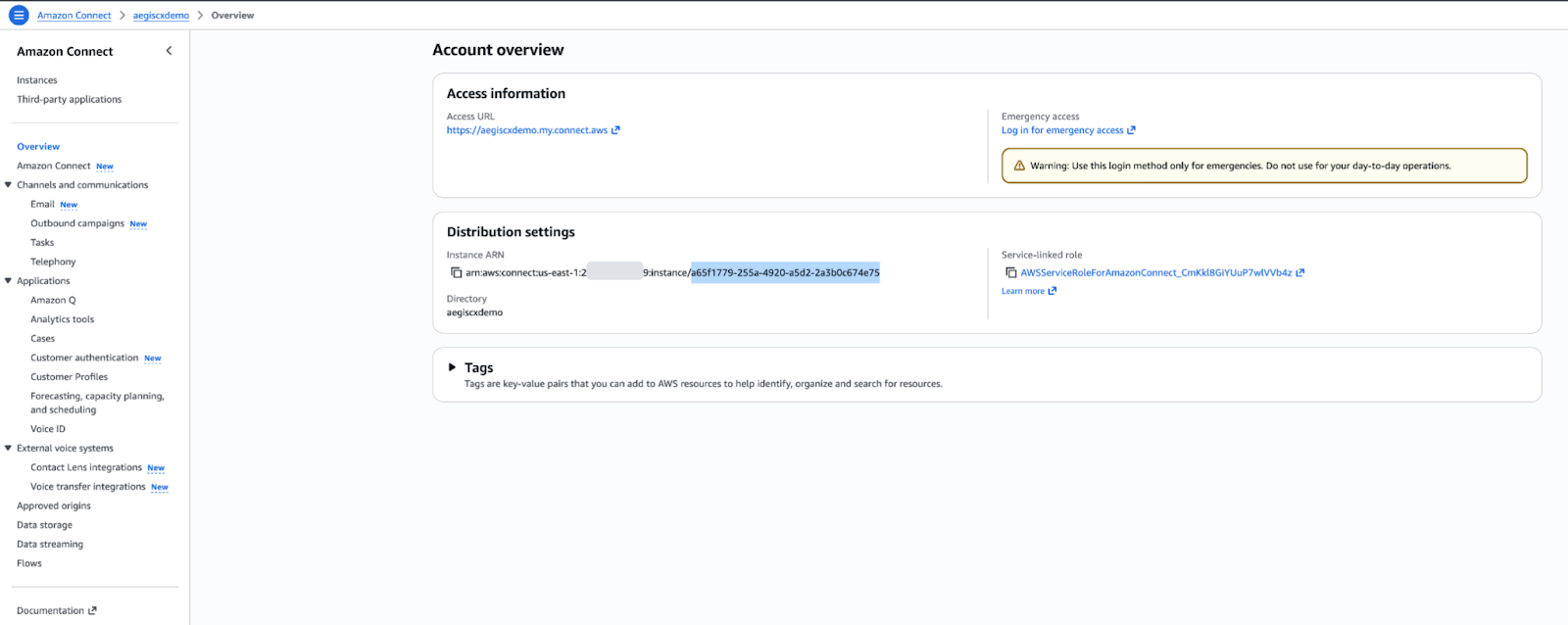
Step 1: Identify Your Amazon Connect Instance ID
- Log in to the AWS Console
- Navigate to Amazon Connect → Instances
- Select your instance and copy the Instance ID
Example:
a65f1779-255a-4920-a5d2-2a3b0c674e75
You’ll use this ID multiple times throughout the setup.
Step 2: Create an IAM Policy for Amazon Connect Federation
Amazon Connect uses a federation token behind the scenes when users access the console via SAML. We must explicitly allow this.
Create a new IAM Policy
- Go to IAM → Policies → Create policy
- Choose JSON
- Create a policy named:
OktaFederationPolicy
{
"Version": "2012-10-17",
"Statement": [
{
"Sid": "Statement1",
"Effect": "Allow",
"Action": "connect:GetFederationToken",
"Resource": [
"arn:aws:connect:<aws-region>:<account-id>:instance/<connect-instance-id>/user/${aws:userid}"
]
}
]
}
Example:
{
"Version": "2012-10-17",
"Statement": [
{
"Sid": "Statement1",
"Effect": "Allow",
"Action": "connect:GetFederationToken",
"Resource": [
"arn:aws:connect:us-east-1:2##########9:instance/a65f1779-255a-4920-a5d2-2a3b0c674e75/user/${aws:userid}"
]
}
]
}
WhyThis Matters
Without this permission, SAML login may succeed but the Amazon Connect console will fail to load.
Step 3: Create the Okta Application (AWS Account Federation)
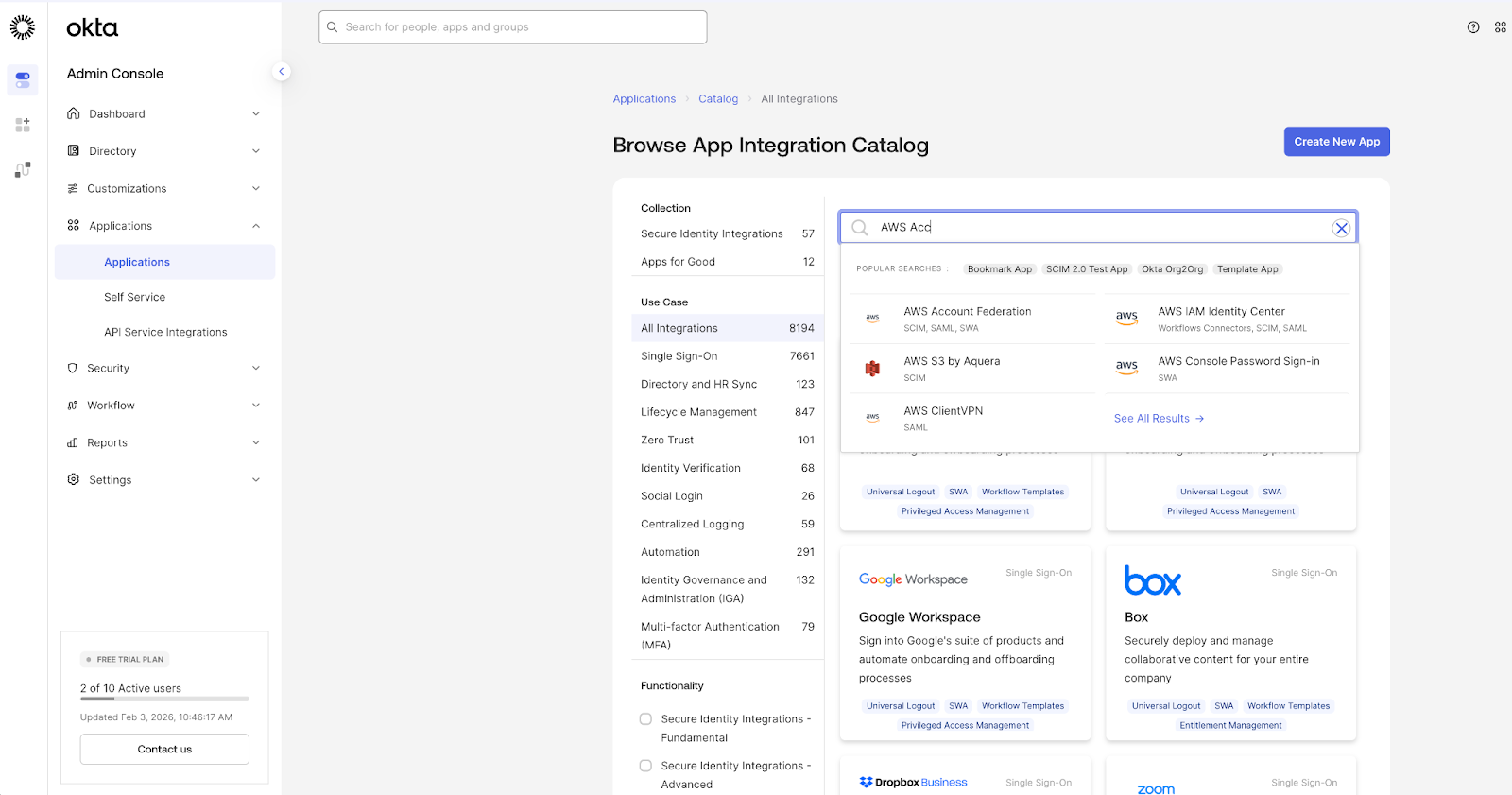
- Log in to Okta Admin
- Go to Applications → Browse App Catalog
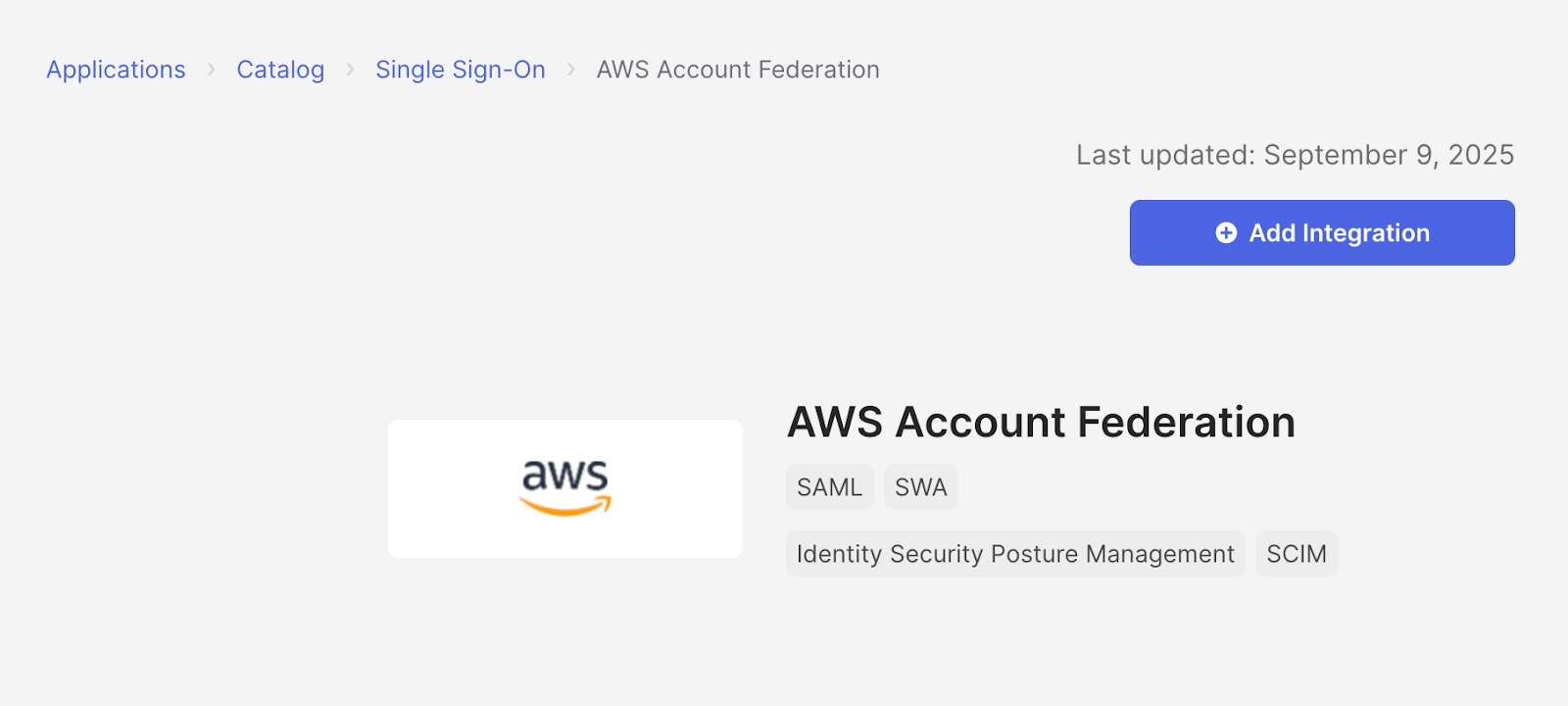
- Search for “AWS Account Federation”
- Click Add Integration
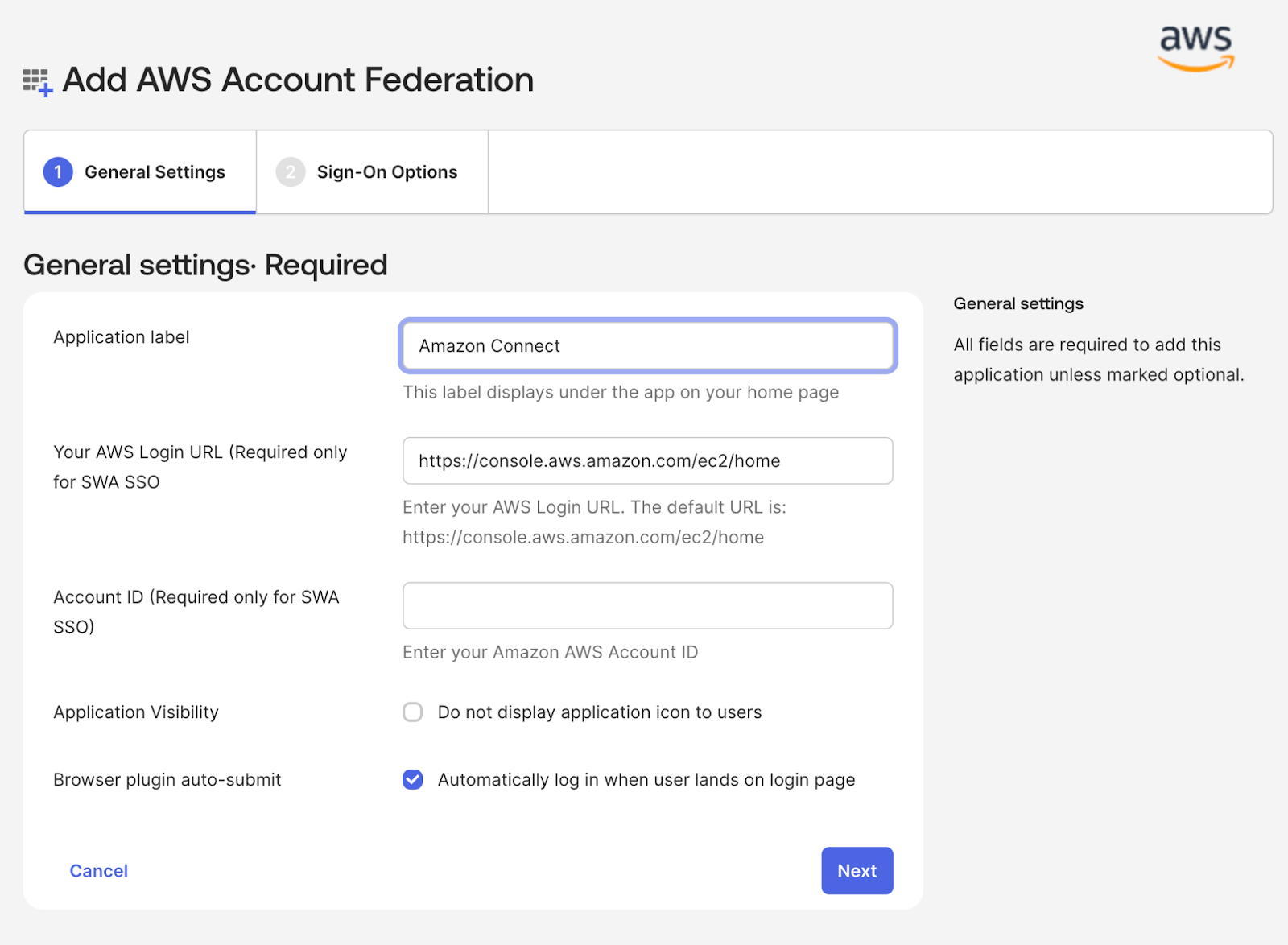
Application Settings
- Application name: Amazon Connect
- Sign-on method: SAML 2.0
Step 4: Configure the Default Relay State (Critical)
In the Sign On tab:
Default Relay State
https://<region>.console.aws.amazon.com/connect/federate/<connect_id>
In Our example the value is:
https://us-east-1.console.aws.amazon.com/connect/federate/a65f1779-255a-4920-a5d2-2a3b0c674e75
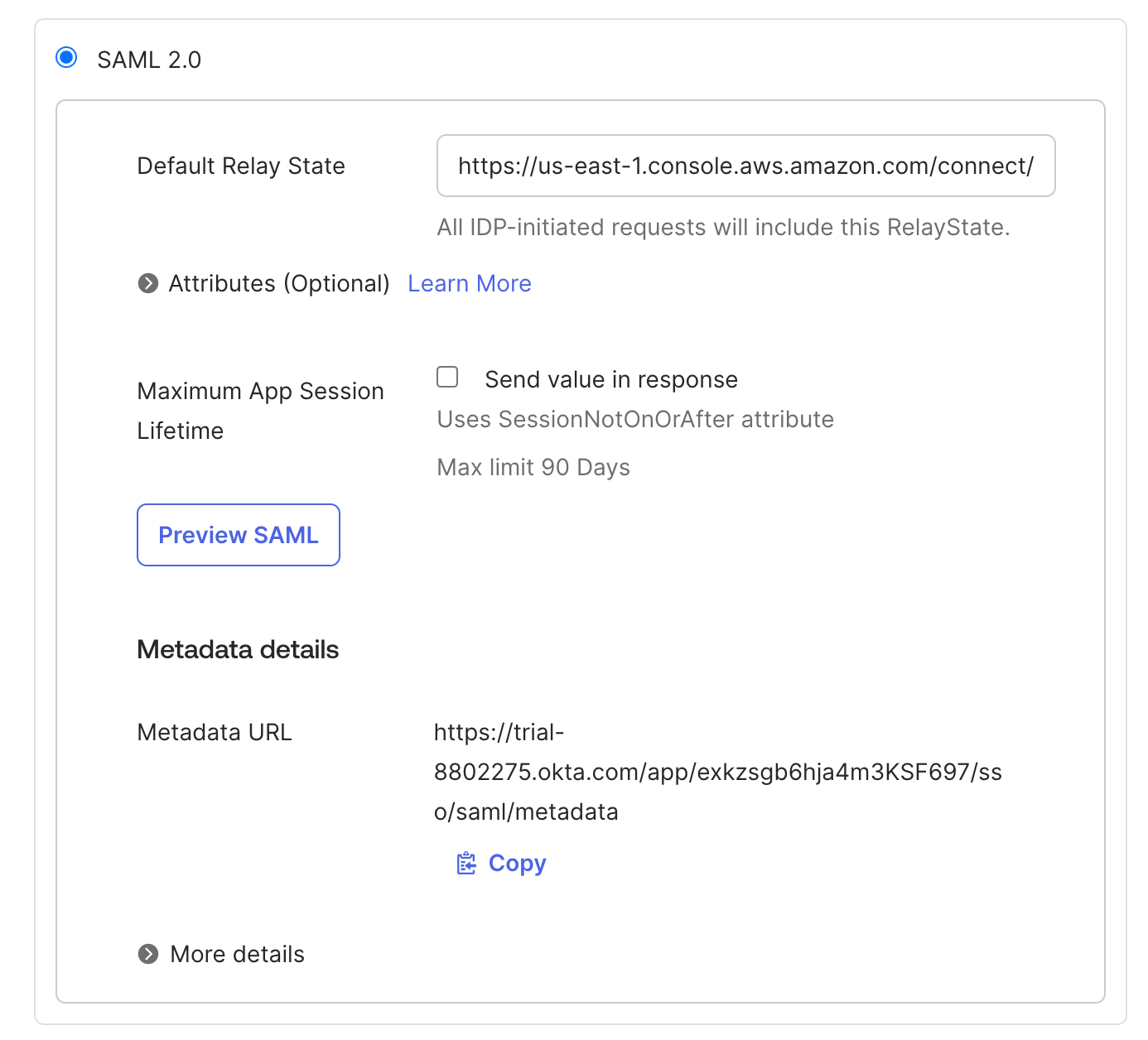
Step 5: Download Okta Metadata
- Copy the Metadata URL
- Open it in a new browser tab
- Save the resulting file as metadata.xml
You’ll use this to create the IAM SAML provider. Now Save your Okta application configuration.
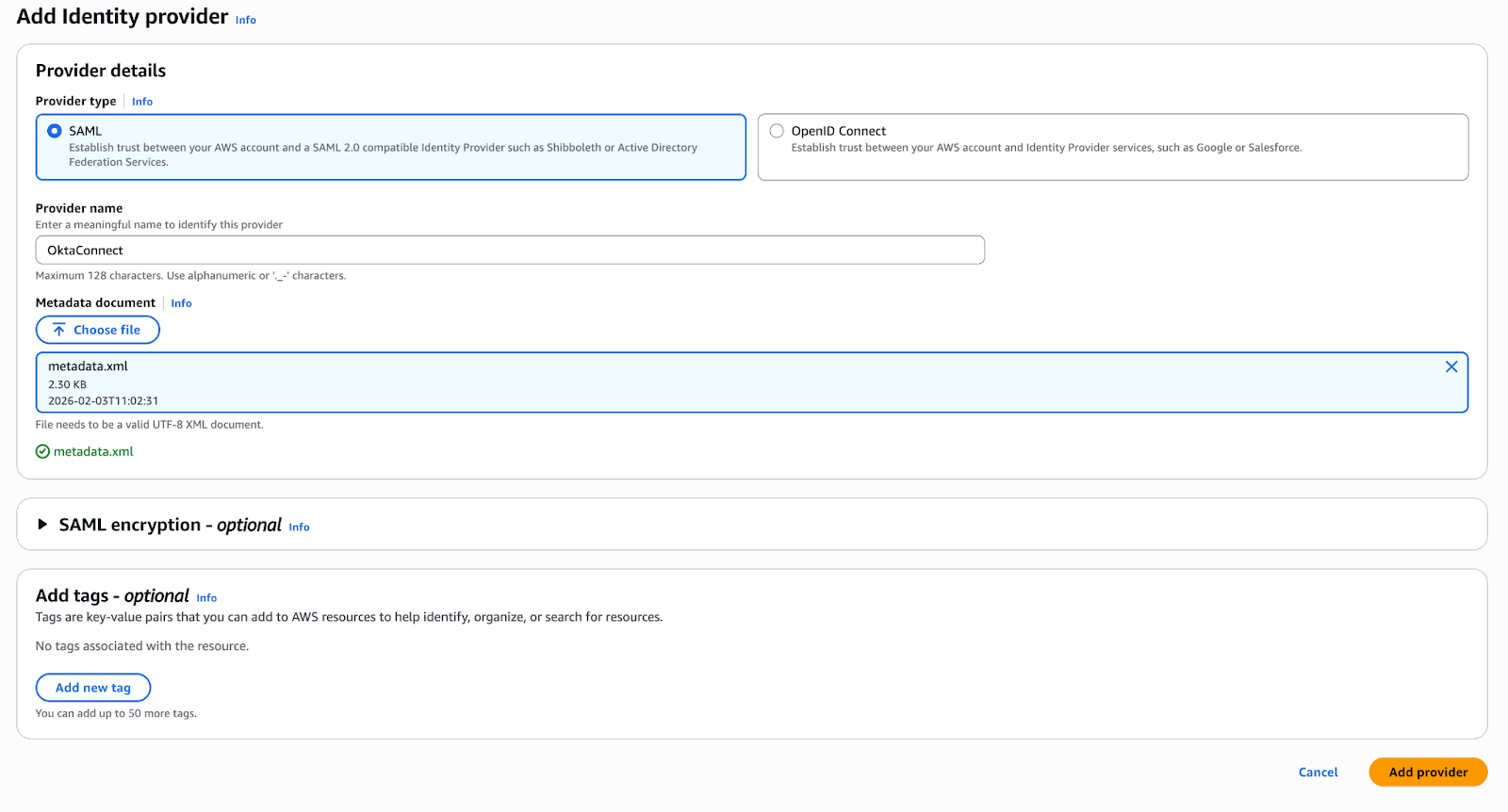
Step 6: Create the IAM SAML Identity Provider
- Go to IAM → Identity providers → Add provider
- Provider type: SAML
- Upload metadata.xml
- Name the provider (example):
OktaConnect
 Copy the generated ARN:
arn:aws:iam::2##########9:saml-provider/OktaConnect
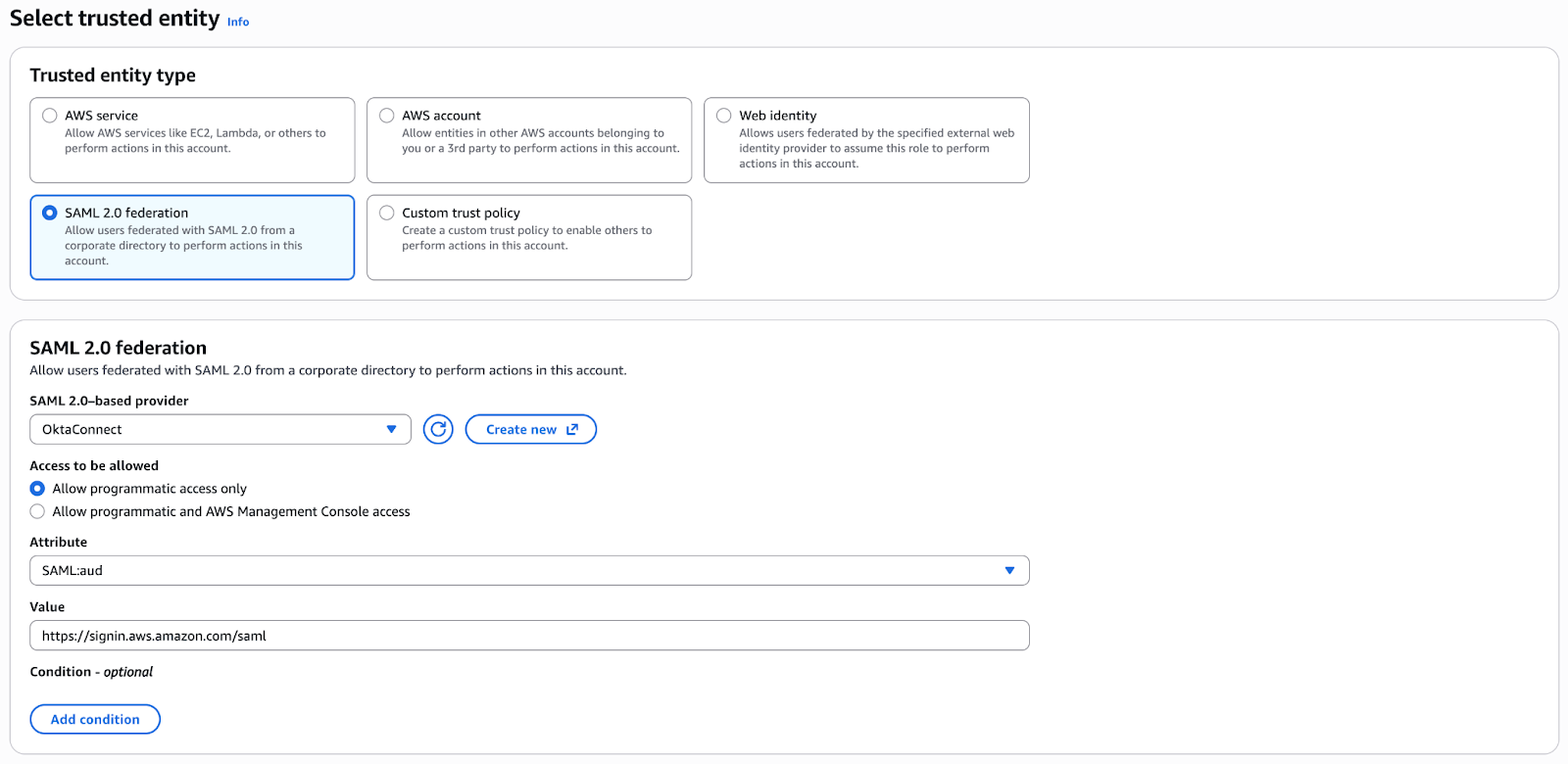
Step 7: Create the IAM Federation Role
- Go to IAM → Roles → Create role
- Trusted entity type: SAML 2.0 federation
- Choose the OktaConnect provider
- Audience:
https://signin.aws.amazon.com/saml
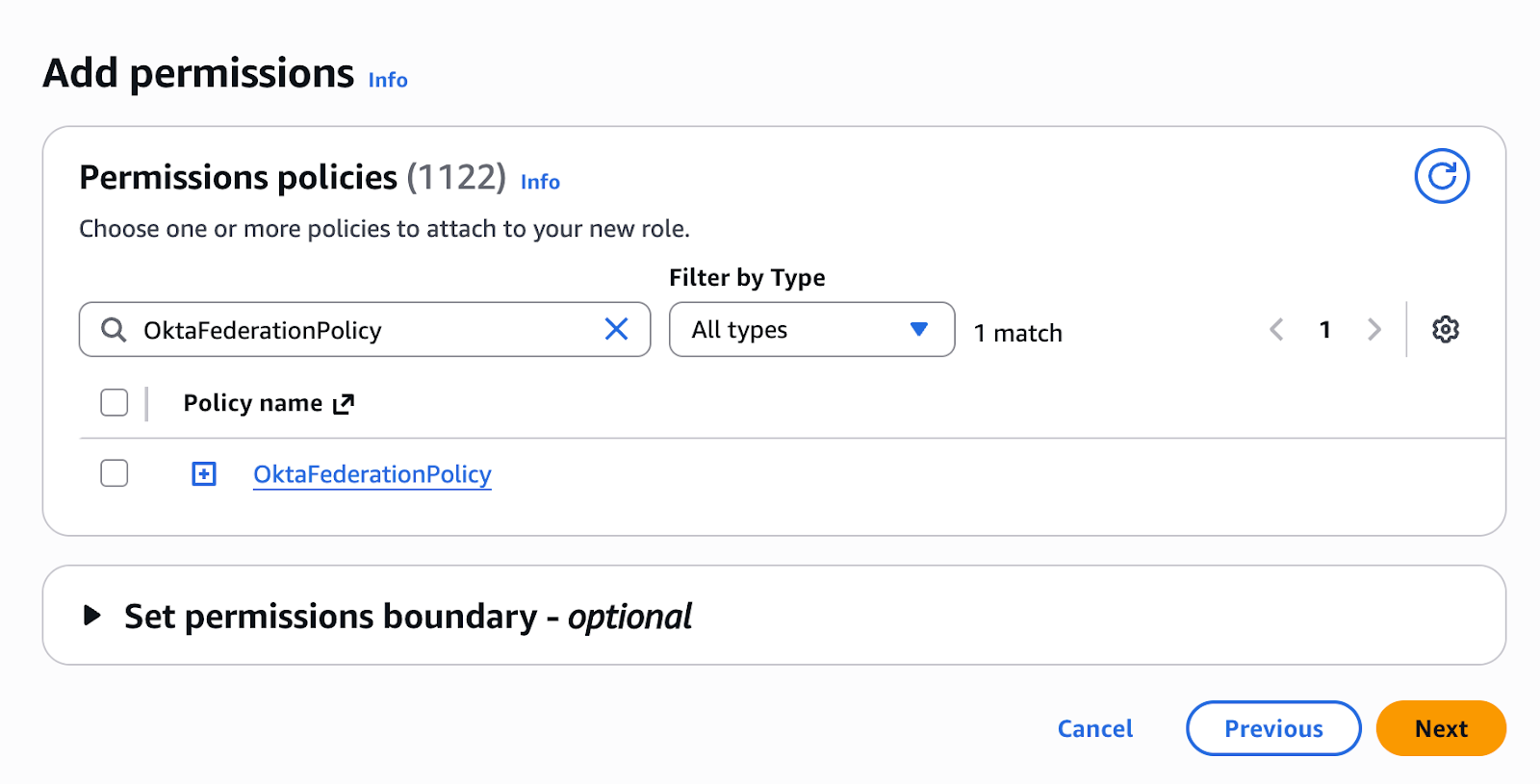
Attach permissions
- Attach OktaFederationPolicy
 Role name:
OktaConnectFederationRole
Copy the role ARN:
arn:aws:iam::2##########9:role/OktaConnectFederationRole
Step 8: Final Okta Configuration (Most Common Failure Point)
Return to Okta → Application → Sign On → Edit
Advanced Sign-On Settings
Identity Provider ARN (Required only for SAML SSO)
This must ultimately result in a SAML Role attribute that contains two ARNs:
role_arn, saml_provider_arn
Example:
arn:aws:iam::2##########9:role/OktaConnectFederationRole,
arn:aws:iam::2##########9:saml-provider/OktaConnect
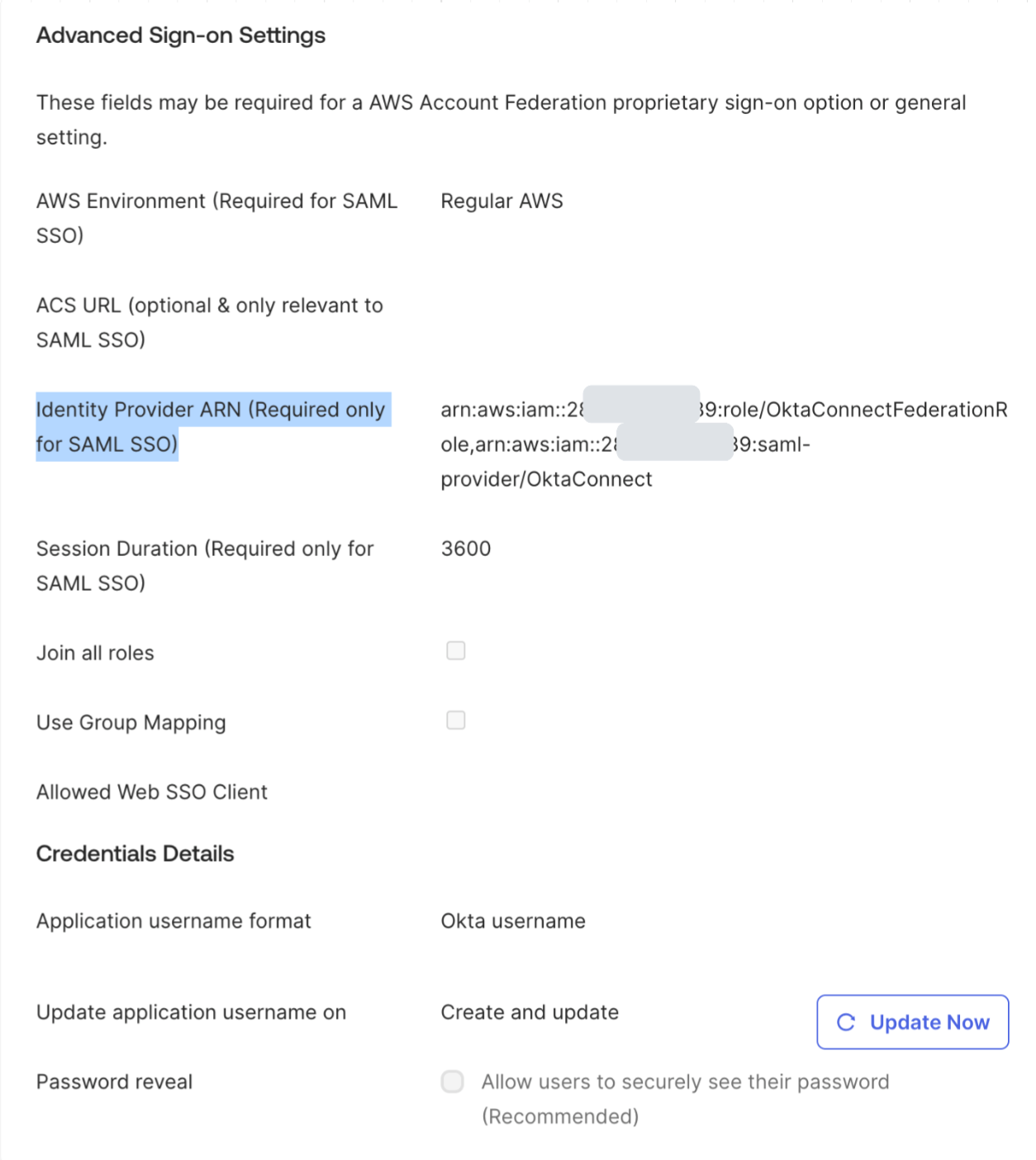
NOTE: If only the IdP ARN is provided, AWS will return:
“Your request included an invalid SAML response”
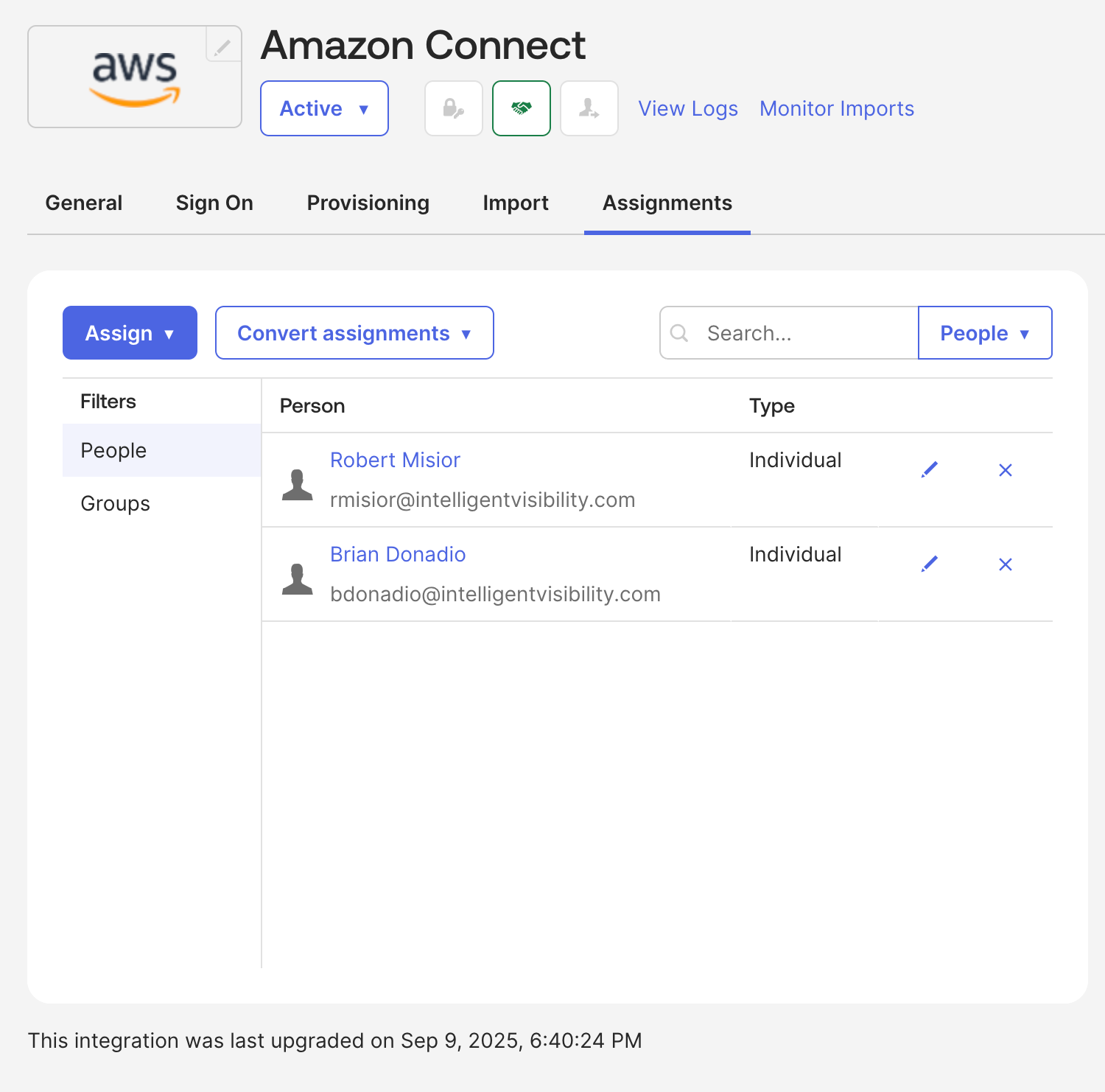
Step 9: Assign Users or Groups
- Assign users or Okta groups to the application
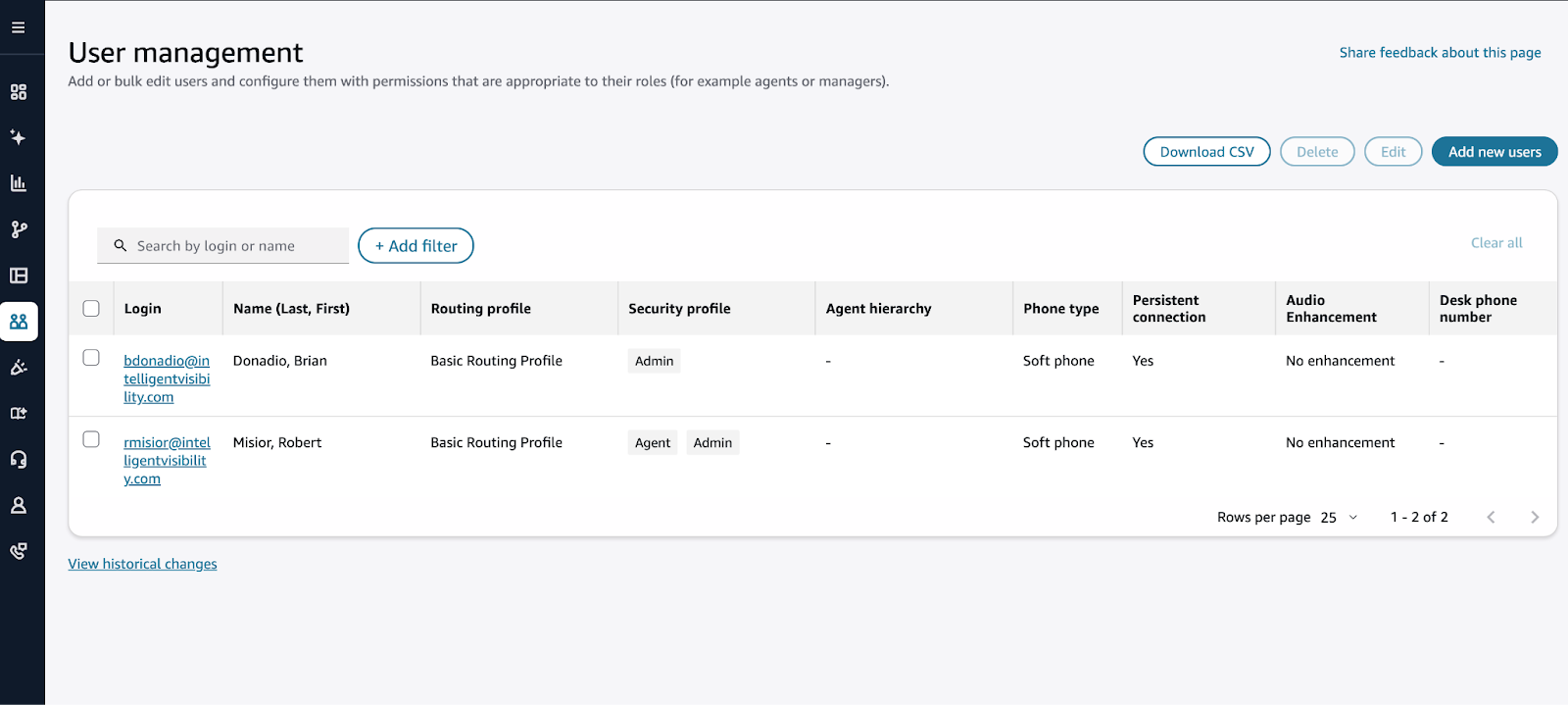
- Ensure:
- User emails match Amazon Connect usernames or
- You have appropriate user mapping in Connect
Step 10: Assign Users or Groups
- Assign users or Okta groups to the application
- Ensure:
- User emails match Amazon Connect usernames or
- You have appropriate user mapping in Connect
Step 11: Test the Integration
- Launch the app from Okta
- You should be redirected to:
/connect/federate/<connect-id>
3. Amazon Connect console should load without errors
Common Errors & What They Mean
|
Error |
Root Cause |
|
Invalid SAML response |
Role attribute missing role ARN |
|
sts:AssumeRoleWithSAML denied |
IAM role trust policy incorrect |
|
Connect console loads then fails |
Missing connect:GetFederationToken |
Final Thoughts
Amazon Connect SSO with Okta works extremely well once configured correctly, but it is sensitive to:
- Exact SAML attribute formats
- IAM trust relationships
- The dual-ARN Role requirement
If you understand that AWS federation happens first, and Amazon Connect federation happens second, troubleshooting becomes much more straightforward.